


Turn Existing Content Into Short Videos

Creating video does not always mean starting with an empty page. A useful blog post, product guide, webinar, customer question, tutorial, presentation, or email campaign can often become a shorter visual format for social media and other channels.
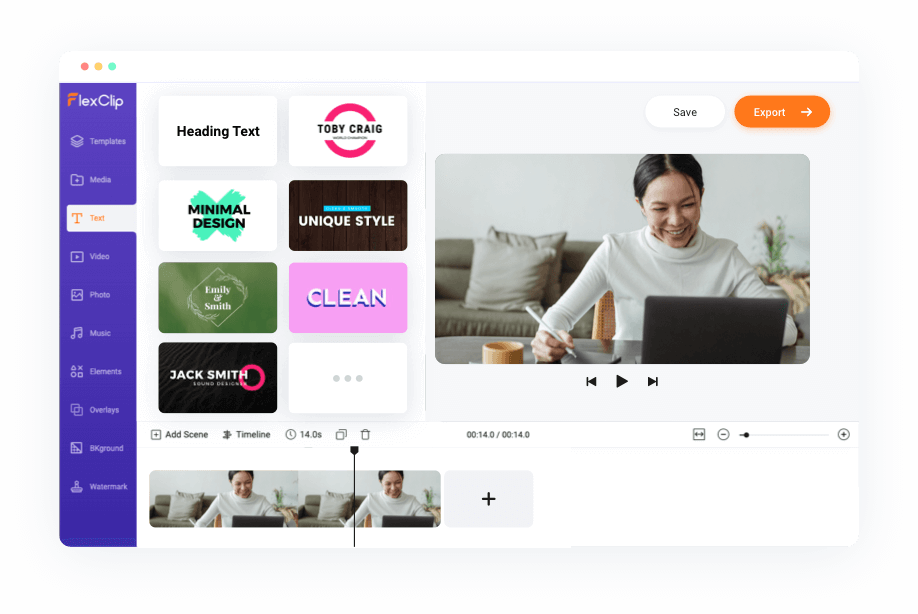
FlexClip can help creators and teams build short videos from existing content by combining templates, a timeline editor, text, subtitles, stock media, audio tools, screen recording, and AI-assisted creation features.
This guide explains how to repurpose existing content into clearer video clips without simply copying a full article onto a screen.
Choose Content Worth Repurposing
Not every article or page needs to become a video. Start with content that already has a clear takeaway, useful answer, product explanation, practical checklist, or visual process.
A strong short video usually focuses on one idea from a larger piece of content. For example, one blog article can become several clips instead of one long summary.
| Existing content | Possible short video angle | Best focus |
|---|---|---|
| Blog post | One tip, checklist item, or key lesson. | Turn a long explanation into one useful takeaway. |
| Product page | Feature overview or use-case demonstration. | Show what the product helps people do. |
| FAQ page | Answer one common customer question. | Keep the response short and specific. |
| Webinar or podcast | Short highlight clip or quote. | Choose one point that can stand alone. |
| Presentation | Visual summary of one slide or concept. | Use simple text and supporting visuals. |
The goal is not to turn every paragraph into a scene. The goal is to create a clip that gives viewers a useful reason to learn more.
Write a Short Script Before Editing
Repurposed videos often become confusing when creators start adding scenes without deciding what the viewer should learn. A short script helps you choose the strongest points before opening the editor.
A simple short-form structure can be enough:
- Open with the main question, problem, or result.
- Explain one useful idea or practical step.
- Show an example, visual, screen, product, or supporting image.
- End with a clear next step.
For example, instead of trying to explain an entire “How to Choose a CRM” article, create a video around one question: “What should a small business check before choosing a CRM?”
Keep the language conversational and easy to understand. A short video should not sound like a long article being read word for word.
Build a Visual Sequence That Supports the Script
Each scene should help the viewer understand the message. Use clips, screenshots, photos, icons, screen recordings, product images, or animated text only when they add useful context.
FlexClip’s timeline editor can help arrange scenes, layer text, adjust clip timing, add audio, and create a sequence that feels connected rather than random.
- Use one main visual idea per scene.
- Keep text short enough to read quickly.
- Use screenshots or screen recordings for software tutorials.
- Use product visuals when explaining physical items.
- Use stock footage only when it supports the actual topic.
- Leave enough time for viewers to read key text.
- Keep logo placement subtle and consistent.
Simple visuals usually work better than a crowded mix of unrelated clips, transitions, and decorative elements.
Use Captions for Mobile-First Viewing
Many people watch short videos with the sound off, especially while browsing social platforms in public places. Captions can make a video easier to follow without relying on audio alone.
Use captions to support the spoken message, but keep them readable. Break long sentences into smaller sections and avoid placing text behind interface buttons or at the extreme edges of a vertical video.
Review automatic subtitles
AI-generated subtitles can save time, but they should be checked before publishing. Product names, unusual terms, acronyms, numbers, and names may need correction.
Use text overlays for key ideas
On-screen text can highlight the main point, checklist step, or call to action. It should not duplicate every word in the voiceover.
Keep contrast high
Text should remain readable over video footage. Use a simple background, semi-transparent text box, outline, or shadow when needed.
Test the final clip on a phone
A design that looks balanced on a desktop screen may be hard to read on a smaller device. Review the final export on mobile before publishing.
Use AI Features Without Losing Accuracy
FlexClip includes AI-assisted features that can help with video ideas, scripts, subtitles, text-to-speech, background cleanup, and video generation. These tools can be helpful when you are building a first draft from a prompt, article, or existing resource.
However, repurposing content still needs editorial judgment. AI-generated scenes, copy, and voiceovers should match the source material and should not create claims that were not present in the original content.
- Use AI scripts as a draft, then edit them for accuracy and tone.
- Check generated visuals before using them in a product or service video.
- Review voiceover pronunciation and pacing.
- Confirm that facts, product descriptions, prices, and dates are current.
- Do not publish AI-generated claims that you have not verified.
- Avoid misleading edits, fake testimonials, impersonation, or deceptive visual evidence.
AI can help speed up production, but it should not replace careful review when the video represents a real brand, customer, service, or product.
Adapt One Idea for Different Platforms
The same core message can work across several channels, but each platform may need a different crop, title, pacing, or caption style. Build the main idea once, then adapt it instead of rebuilding every version from the beginning.
| Channel type | Useful video approach | What to adjust |
|---|---|---|
| Vertical social feed | Fast opening, large text, short scenes. | Use a vertical layout and keep key text centered. |
| Blog article | Helpful explainer supporting written content. | Use a wider layout and include a relevant thumbnail. | Email campaign | Short preview that leads to a page or full video. | Keep the message focused and use one destination link. | Product page | Product demonstration or feature explanation. | Show relevant details, use cases, and next steps. | Presentation | Short clip supporting a key talking point. | Keep the pace slower and text large enough for viewing. |
Keep the original message consistent, but do not assume one export will fit every platform perfectly.
Common Content Repurposing Mistakes
Repurposing saves time only when the new video feels native to the format. A clip should give viewers a complete useful idea, even if it also encourages them to read the longer source content.
- Trying to summarize an entire article in one short video.
- Reading long written paragraphs directly into a voiceover.
- Using visuals that do not relate to the message.
- Adding captions without checking text accuracy.
- Using the same aspect ratio for every platform.
- Publishing an AI-generated draft without reviewing claims and details.
- Forgetting to add a clear next step for interested viewers.
Choose one idea, build a simple visual explanation, then test whether a viewer can understand the point without reading the original article first.
A Practical FlexClip Repurposing Workflow
Use this workflow when turning articles, products, tutorials, or other existing content into short videos.
- Choose one useful idea from the original source.
- Write a short script with one message and one call to action.
- Choose a template or blank project based on the final platform.
- Add clips, screenshots, images, and text that support the script.
- Create subtitles and review every line.
- Add music or voiceover only when it improves clarity.
- Export a version that fits the intended channel.
- Watch the final file on desktop and mobile before publishing.
This process can help you create more video content from work you have already completed while keeping each clip useful, focused, and easier to publish consistently.
Final Thoughts
FlexClip can be useful for turning existing articles, product pages, tutorials, presentations, and customer questions into short-form videos that support a wider content strategy.
The best repurposed video is not a compressed copy of the original article. It is a clear standalone idea with visuals, captions, and pacing that fit the way people watch video online.
Use FlexClip to compare online video creation tools and review the current features before choosing a workflow.
FAQ
Can I turn blog posts into videos with FlexClip?
Yes. You can turn key points from a blog post into a short script, then use visuals, text, subtitles, music, screen recordings, or templates to create a video version.
What type of content works best for short videos?
Useful short videos often focus on one question, tip, process step, product feature, customer concern, or clear takeaway from a longer piece of content.
Should I use AI to generate a video from an article?
AI tools can provide a useful starting point, but you should review the final script, visuals, subtitles, voiceover, and factual claims before publishing.
How long should a repurposed video be?
The right length depends on the platform and message. Keep the video only as long as needed to communicate one useful idea clearly.
Why should I create different video sizes?
Different publishing channels use different layouts. Creating versions for the intended platform can improve readability, cropping, and viewer experience.
We only recommend tools we've tested and trust. This post may include affiliate links, meaning we may earn a commission if you choose to purchase - at no extra cost to you.


